
Guide
From an empty builder to a whole competition day running on the big screen. It takes a few minutes.
1. Build the day
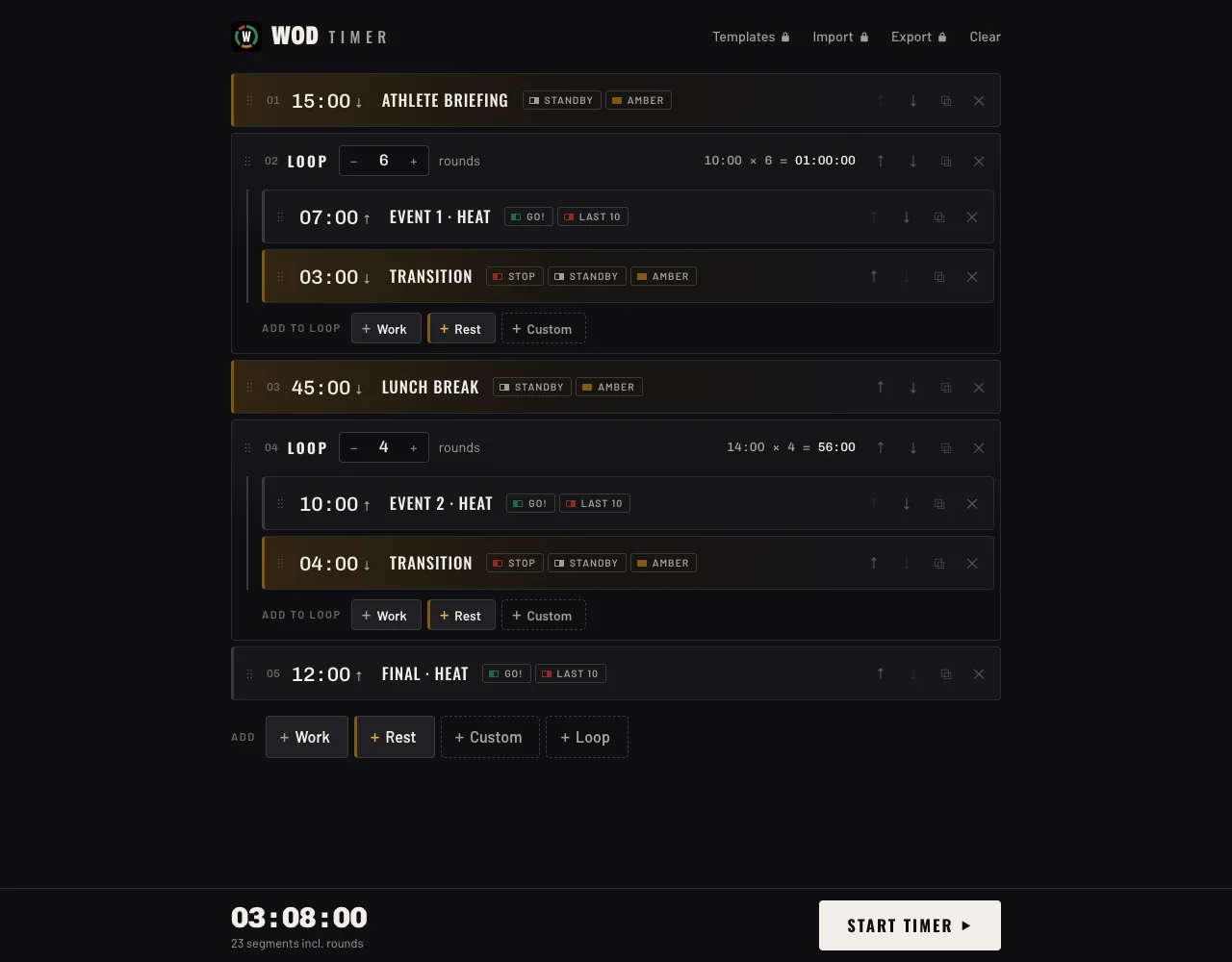
- + Work and + Rest add a ready-made segment. You only type the duration.
- + Custom opens the full editor for a segment of your own.
- Click a segment to edit it. Use ↑ ↓ or drag the ⋮⋮ handle to move it, ⧉ to duplicate and ✕ to delete.
- Made a mistake? Deleting, clearing and importing show an Undo button for a few seconds.
- The total time of the day is shown at the bottom. Everything is saved automatically in your browser.
What each segment can do
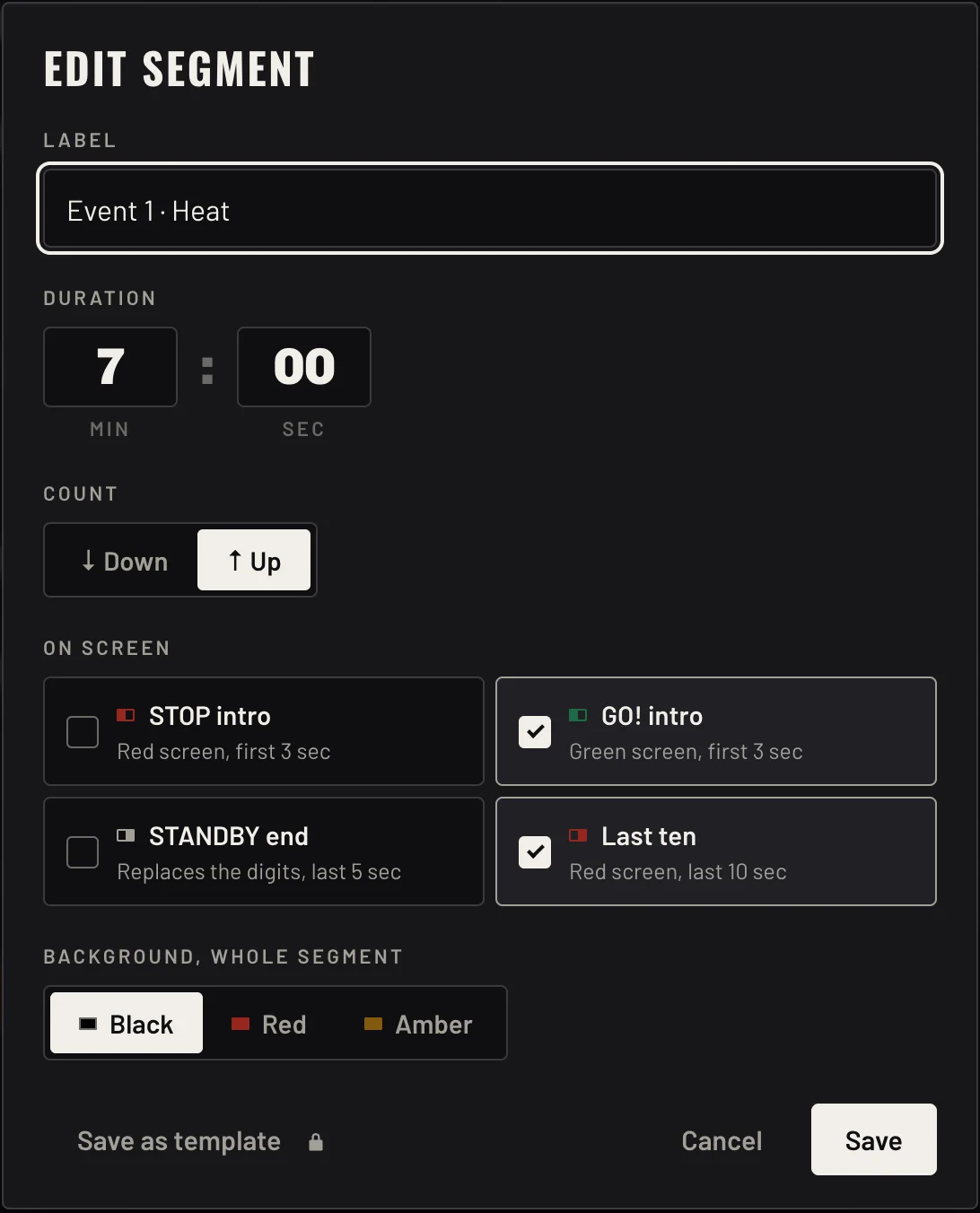
- Label and duration, for example "Event 1 · Heat", 7:00. The label is shown above the clock.
- Count: down to zero, or up to the time cap.
- STOP intro: a red STOP screen for the first 3 seconds.
- GO! intro: a green GO! screen for the first 3 seconds. With both, STOP comes first, then GO!.
- STANDBY end: STANDBY replaces the digits for the last 5 seconds.
- Last ten: the whole screen turns red for the last 10 seconds, or the last 5 if you pick 5 sec.
- Background: black, red or amber for the whole segment. Amber works well for transitions and rest.
2. Repeat heats with a loop
- + Loop adds a loop. Inside it, use Add to loop to put in, for example, a Heat and a Transition.
- Set the number of rounds with − / +. Six heats with transitions is one loop with 6 rounds.
- The loop shows its own total, like 10:00 × 6 = 01:00:00.
- Click Loop to collapse a long loop to one line, and again to open it.
- Click ✎ next to the name to rename a loop, for example to Heats. Press Enter to save; leave it empty to go back to Loop.
3. Templates (offline version)
- Templates in the top bar lists your one-click segments. Edit or delete them, or add a New template.
- In the segment editor, Save as template turns any segment into a template. Its duration is only a suggestion; you choose it each time.
- Reset Work & Rest restores the two default templates.
- In the free version, + Work and + Rest work as usual; creating your own templates is part of the offline version.
4. Run it on the big screen

- Click Start timer, then Start when you're ready.
- Click Fullscreen. The buttons and the mouse pointer fade away after a few seconds; move the mouse to bring them back.
- The segments run on their own, one after the other, until the day is done.
- Space pauses and resumes. ← and → jump 10 seconds back or forward in the current segment.
- Previous goes back to the previous segment. Back to builder stops the timer.
- Three short beeps count down the last 3 seconds, and a long beep marks zero.
- While the timer runs, the screen stays awake.
5. What the colours mean
| Screen | When |
|---|---|
| GO! | The first 3 seconds of a segment with GO! intro. |
| STOP | The first 3 seconds of a segment with STOP intro, for example when a heat ends and the transition starts. |
| 06:53 | The last 10 seconds of a segment with Last ten, or a whole segment with a red background. |
| 03:00 | A segment with an amber background, typically a transition or rest. |
| STANDBY | The last 5 seconds of a segment with STANDBY end: the next heat is about to start. |
6. Plan at home, run at the venue (offline version)
- Build the day at home and click Export. You get a
.jsonfile. - Copy the
WOD Timerfolder and the file to the venue computer: USB stick, email or cloud drive. - On the venue computer, open
index.html, click Import and choose the file. It replaces the current workout (with Undo).
Workouts are saved per browser and per computer, so Export and Import are how you move a day between computers.
7. Competition-day checklist
- Run the whole day once on the venue computer beforehand.
- Connect the big screen with HDMI and mirror or extend the display.
- Use Chrome or Edge, and click Fullscreen on the big screen.
- Turn off sleep and the screen saver on the computer.
- Turn the sound up so everyone hears the beeps.
- Keep the keyboard close: Space pauses if something happens on the floor.